How to use Mantle
Every step with a real screenshot, in the order you actually work: sign in, add the customer, fill the certificate, hand over the PDF, let the reminder go. Search it, or tap a shortcut below.
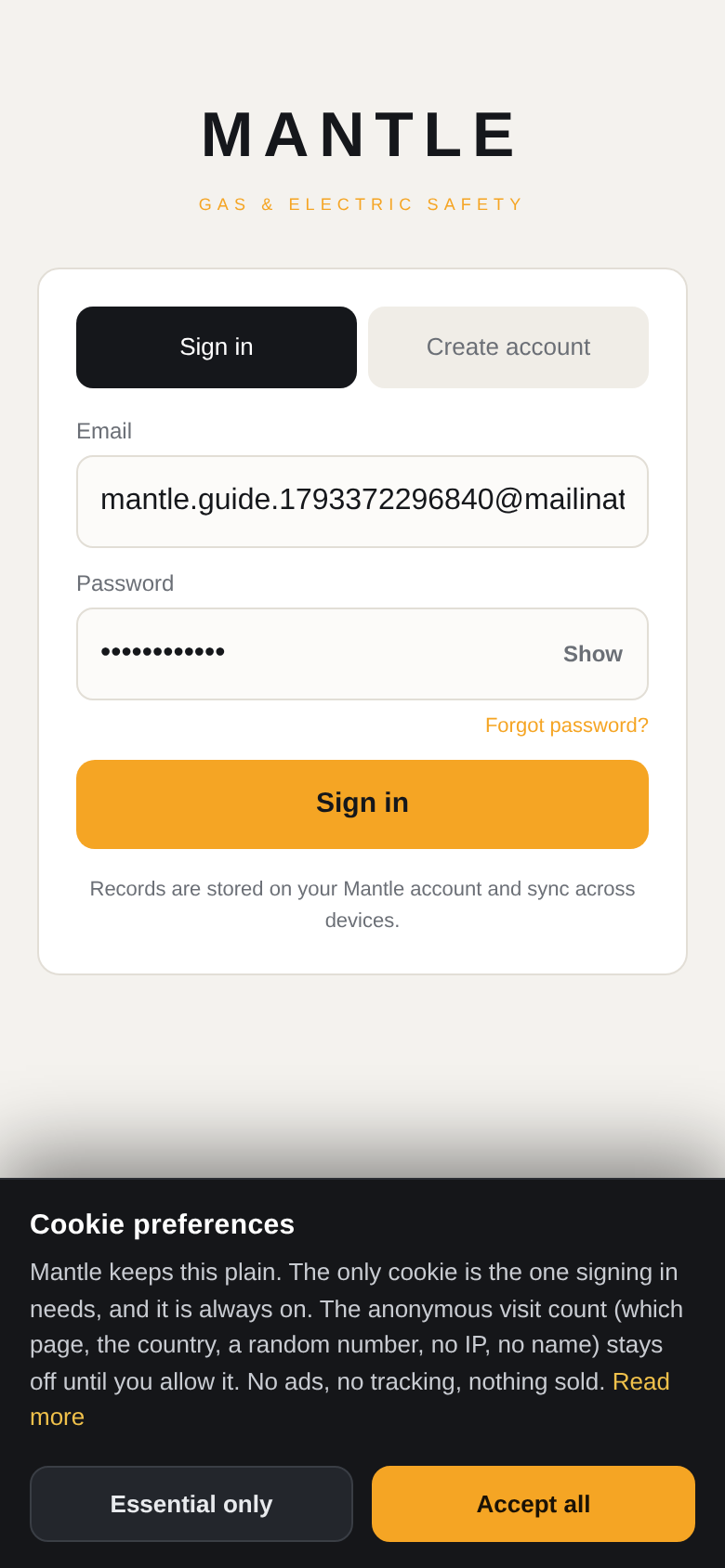
Step 1 · Getting in
1
Sign in for the first time
- Open mantlecerts.co.uk and tap Create free account (or I already have one if you have signed up before).
- Enter your email and a password. If you are new, set your Gas Safe or electrical registration number.
- Mantle emails you a 6-digit code. Type it in. That device then trusts you for 60 days, so it will not ask every time.
If the code does not arrive, check spam, then tap the code link again. Nothing else is blocked while you wait.
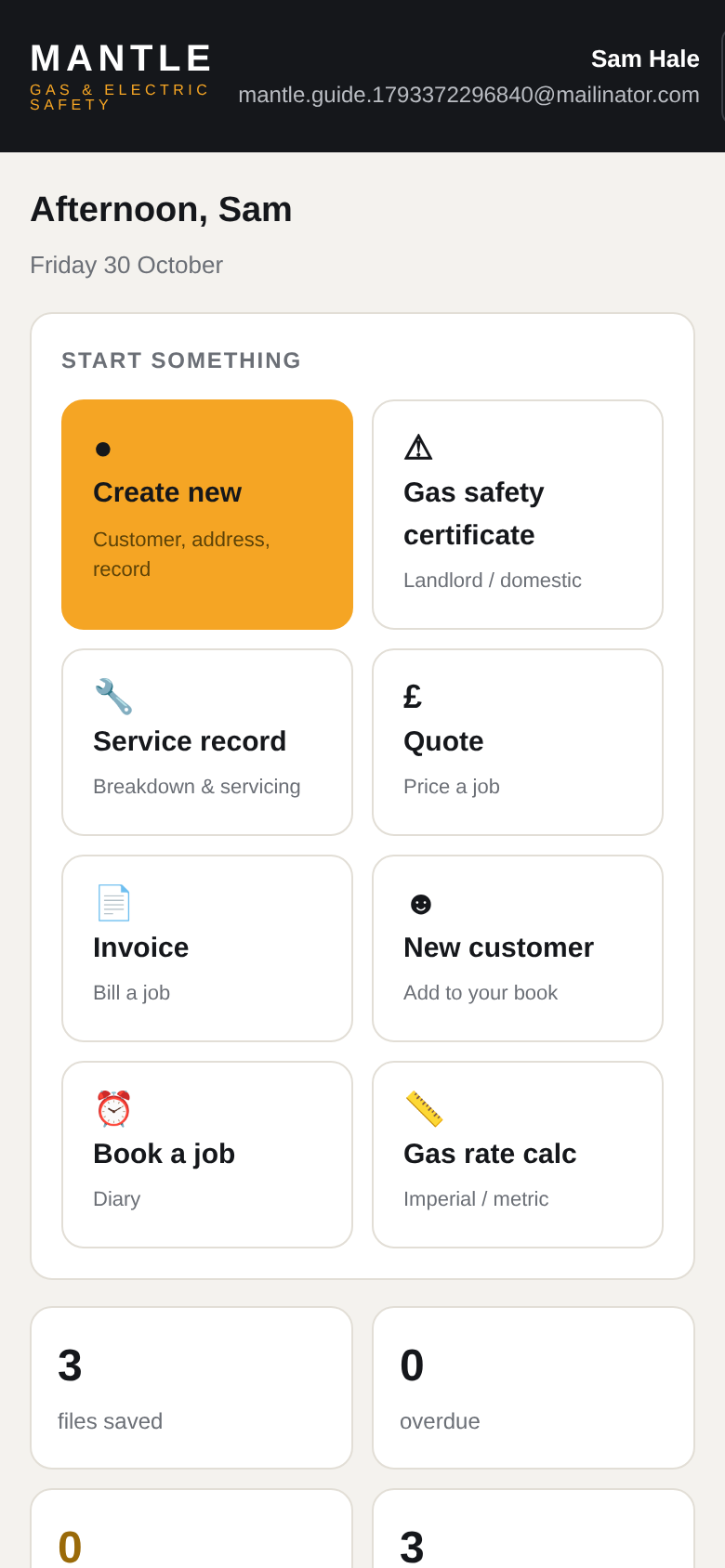
Step 2 · Your home screen
2
Everything starts on Home
- Create new — customer, then address, then the record.
- Gas safety certificate — straight into a CP12.
- Service record, Quote, Invoice, New customer, Book a job, Gas rate calc.
- Below that: files saved, overdue, due in 30 days, customers, today's jobs and anything coming up for renewal.
Back up your files: once a year on Home, tap Go to Backup and keep the ZIP. It is the one thing only you can do for yourself.
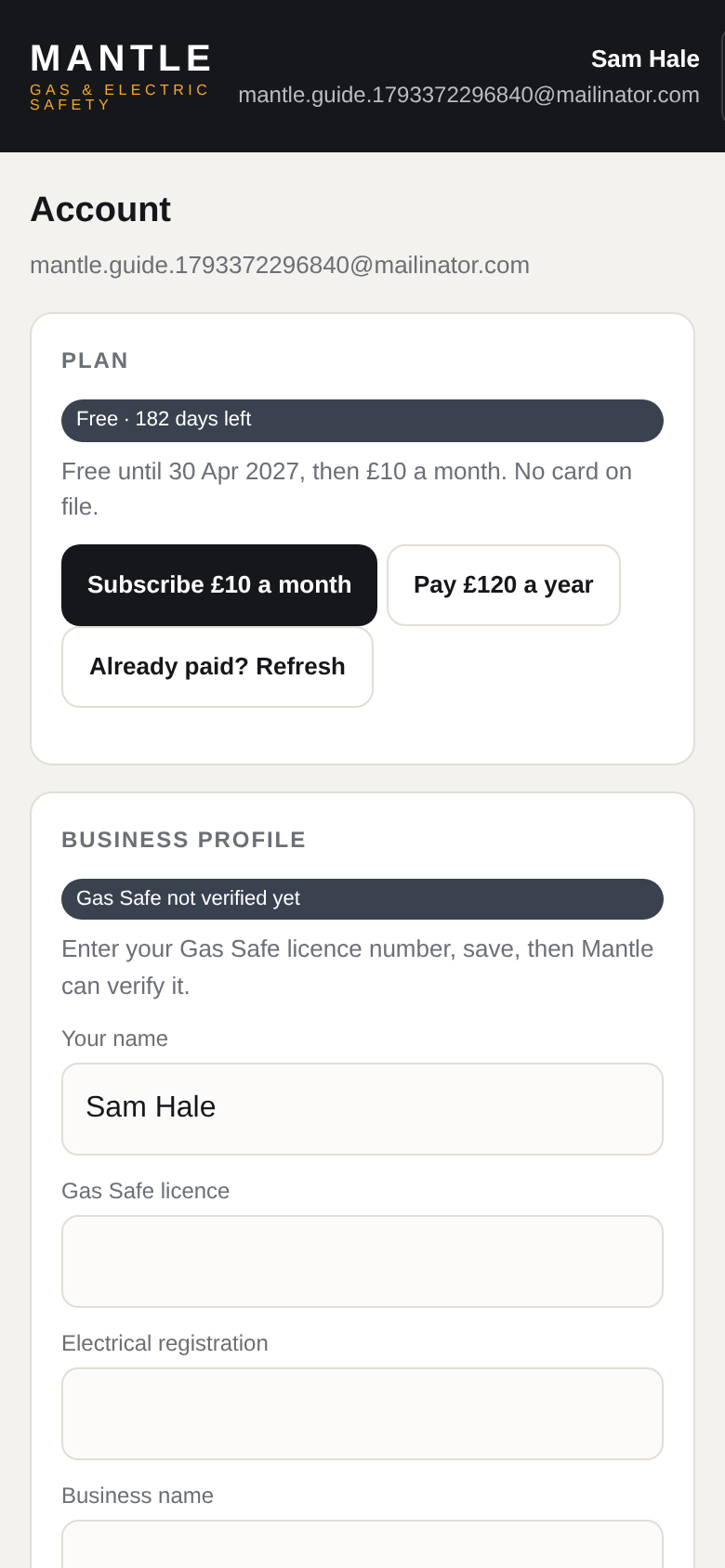
Step 3 · Once, before your first job
3
Fill your business profile
- Tap Account in the bottom bar.
- Under Business profile put your name, Gas Safe licence, business name, contact number and address. Add VAT details only if you are VAT registered.
- Add your PDF logo (square JPEG or PNG). It prints next to the Gas Safe logo with your company name.
- Tap Save profile. Those details now appear on every certificate, quote and invoice.
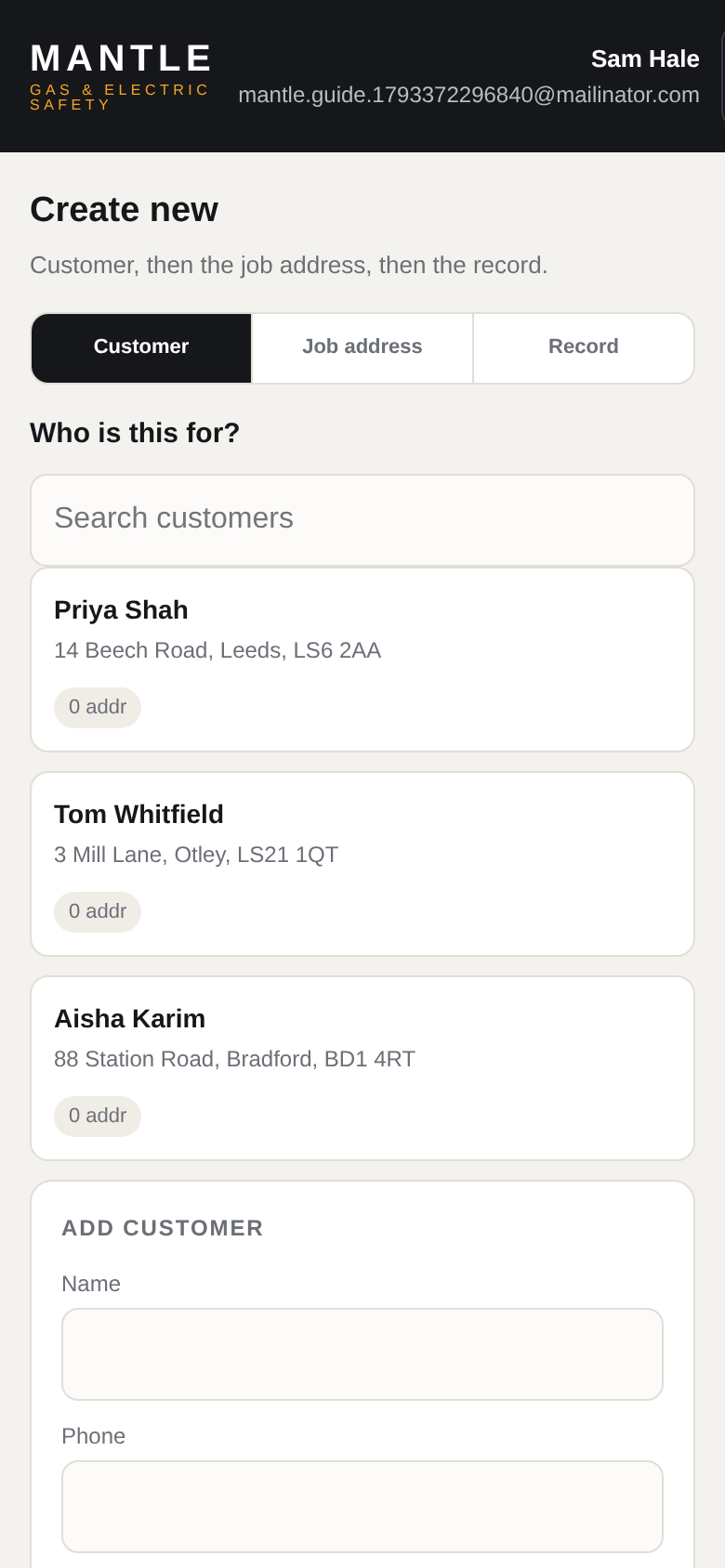
Step 4 · Who the job is for
4
Add the customer
- Tap Create (or New customer on Home).
- Search the book first. If they are already there, tap their name and you skip the rest.
- New customer: name, phone, email, postcode, address line 1, then Add customer.
- Tap the job address, or use Add job address when the property is not where they live.
Already got a book in another app? Customers → Import from another app takes a CSV. Nothing is overwritten.
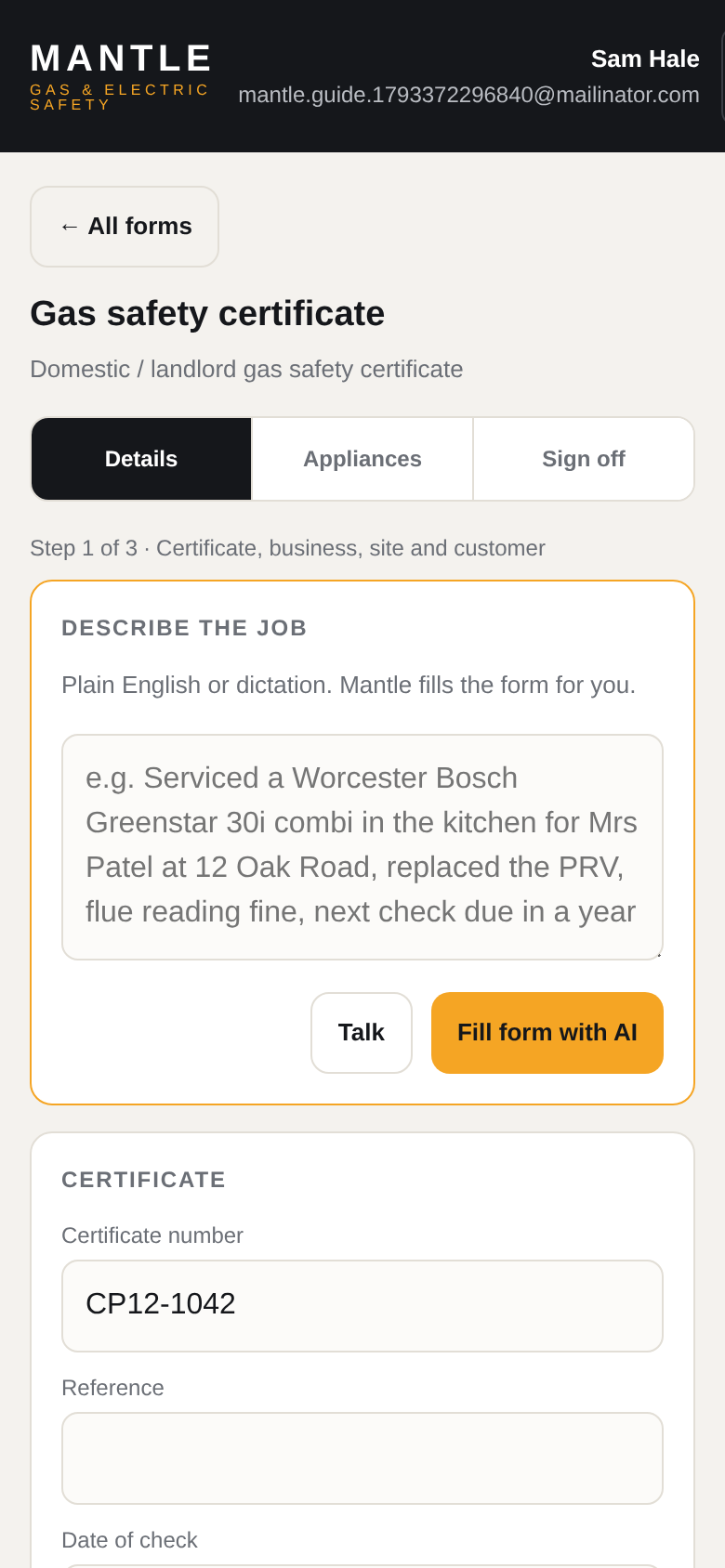
Step 5 · The certificate
5
Make the CP12
- From the customer, pick Gas safety certificate.
- Work down the tabs: property and landlord, appliances, defects and remedial action, declaration.
- Save keeps a draft. Nothing reaches the customer yet.
- Tap Approve when the record is finished. Mantle runs a check first (dates, safe-to-use against failed checks, codes without wording) and lets you issue anyway if you are sure.
Only one appliance? Add it, fill it, move on. The form grows as you add appliances, it is not one long page.
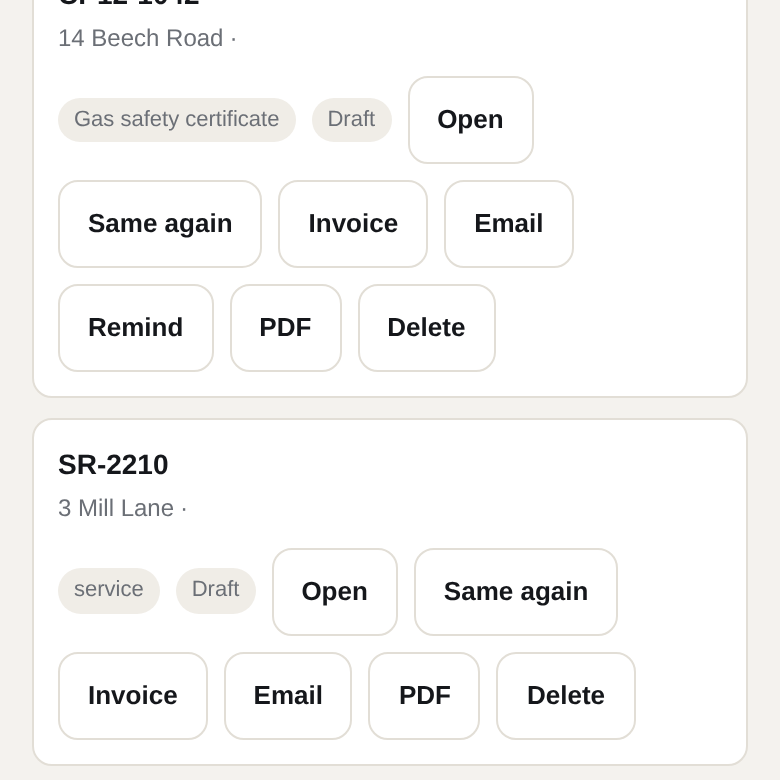
Step 6 · Handing it over
6
PDF and email
- PDF makes the finished document. On a phone it opens in the share sheet, so you can save it to Files, print it or send it in WhatsApp.
- Email the customer sends it from Mantle to their address, with the PDF attached.
- On a laptop it downloads straight away.
Nothing goes out until you tap PDF or Email. Stay on the record until you have handed it over, then forget it.
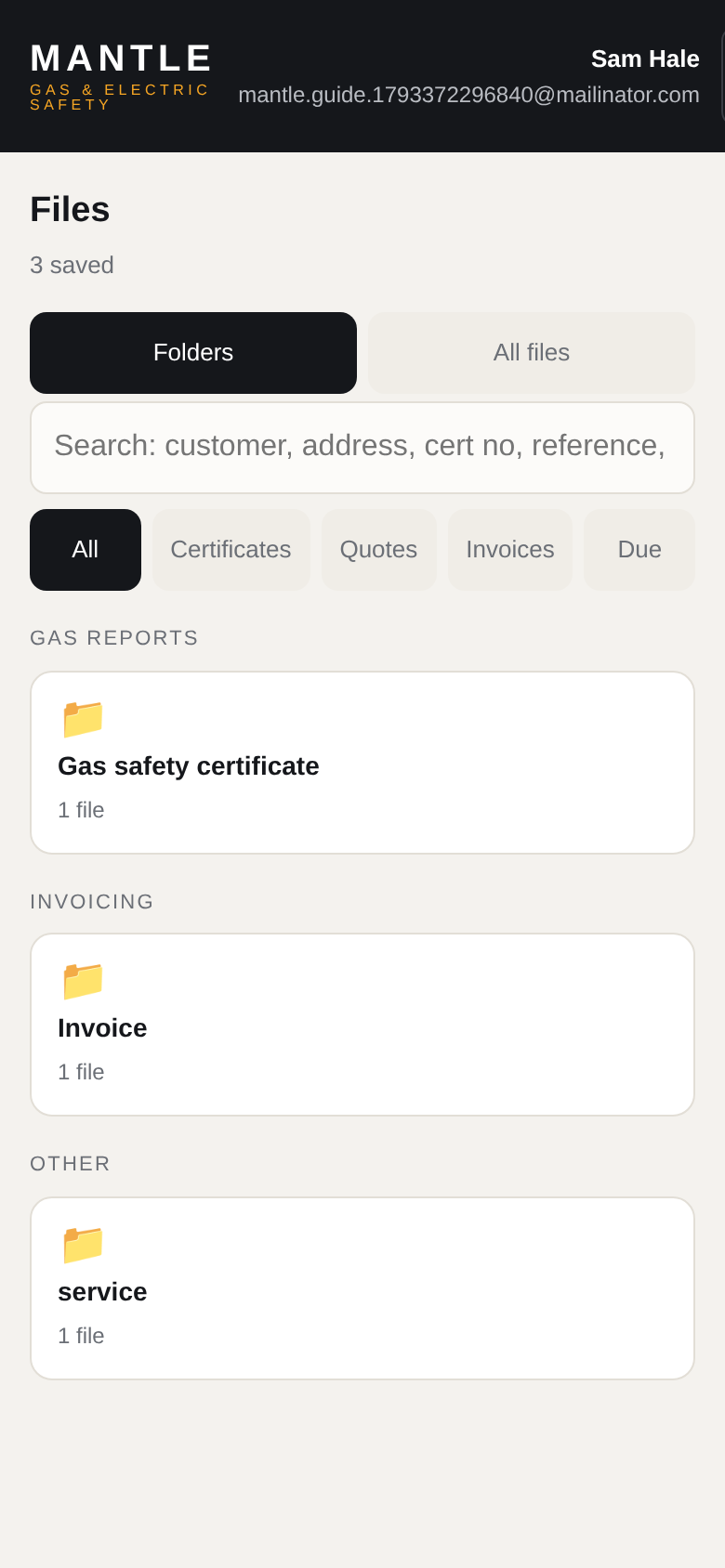
Step 7 · Finding it again
7
Files
- Folders groups by type: gas safety certificate, invoice, service, and the rest.
- All files is one list of everything you have saved.
- The search box finds by customer, address, reference or postcode.
- Open on any file reprints the PDF or reopens the record.
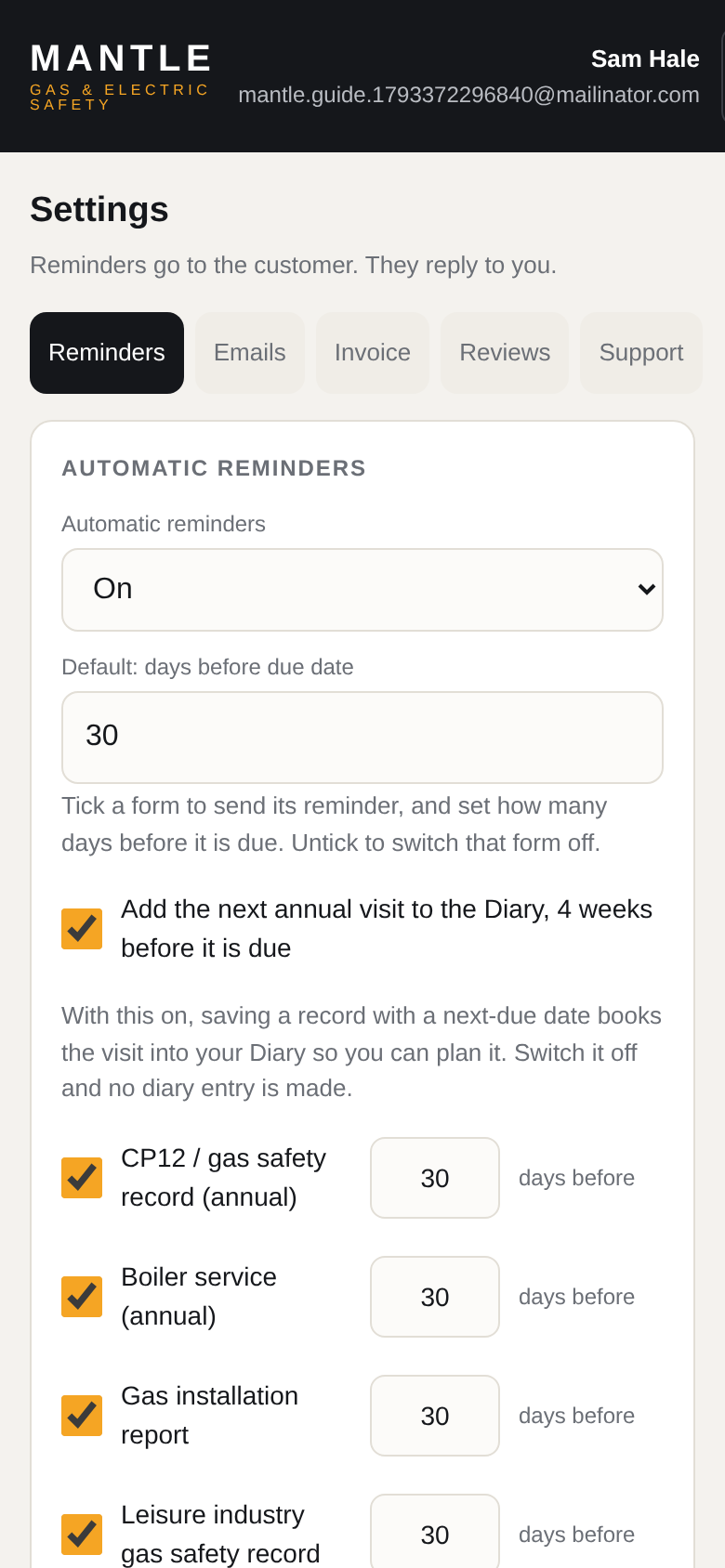
Step 8 · The annual nudge
8
Reminders
- Tap Settings → Reminders.
- Tick the forms you want chased and set days before due for each (30 is a good start for a CP12).
- Turn on Add the next annual visit to the Diary so the repeat job books itself in your Diary four weeks early.
- Save settings.
Reminders go to the customer by email and they reply to you, not to Mantle. You can also tap Add reminder on a single record.
Step 9 · Your week
9
Diary and bookings
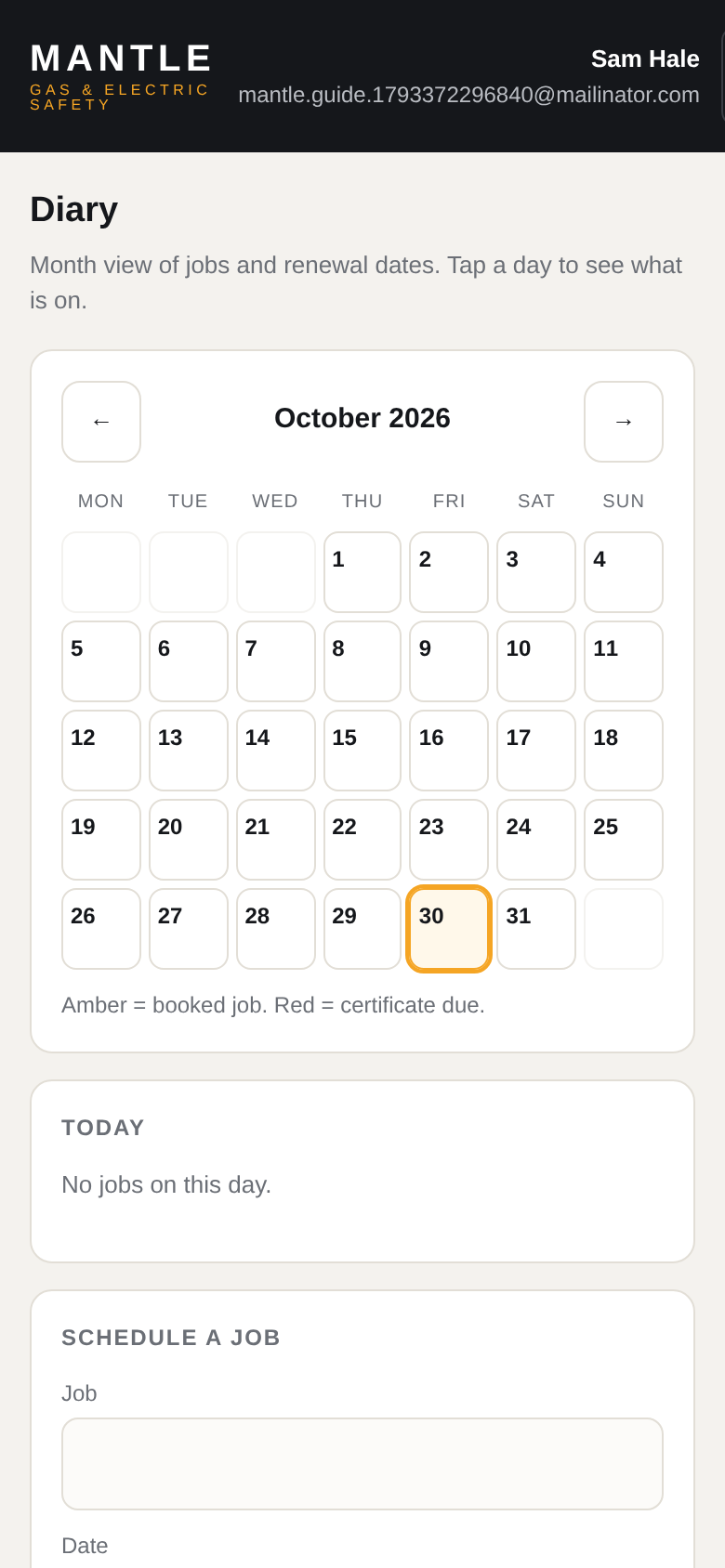
- Diary is a month of jobs and renewal dates. Amber is a booked job, red is a certificate falling due.
- Tap a day to see everything on it, then Book a job against a customer.
- Bookings is where customers ask for a date. Accept or decline, it lands in the Diary.
Step 10 · In the van
10
Tools
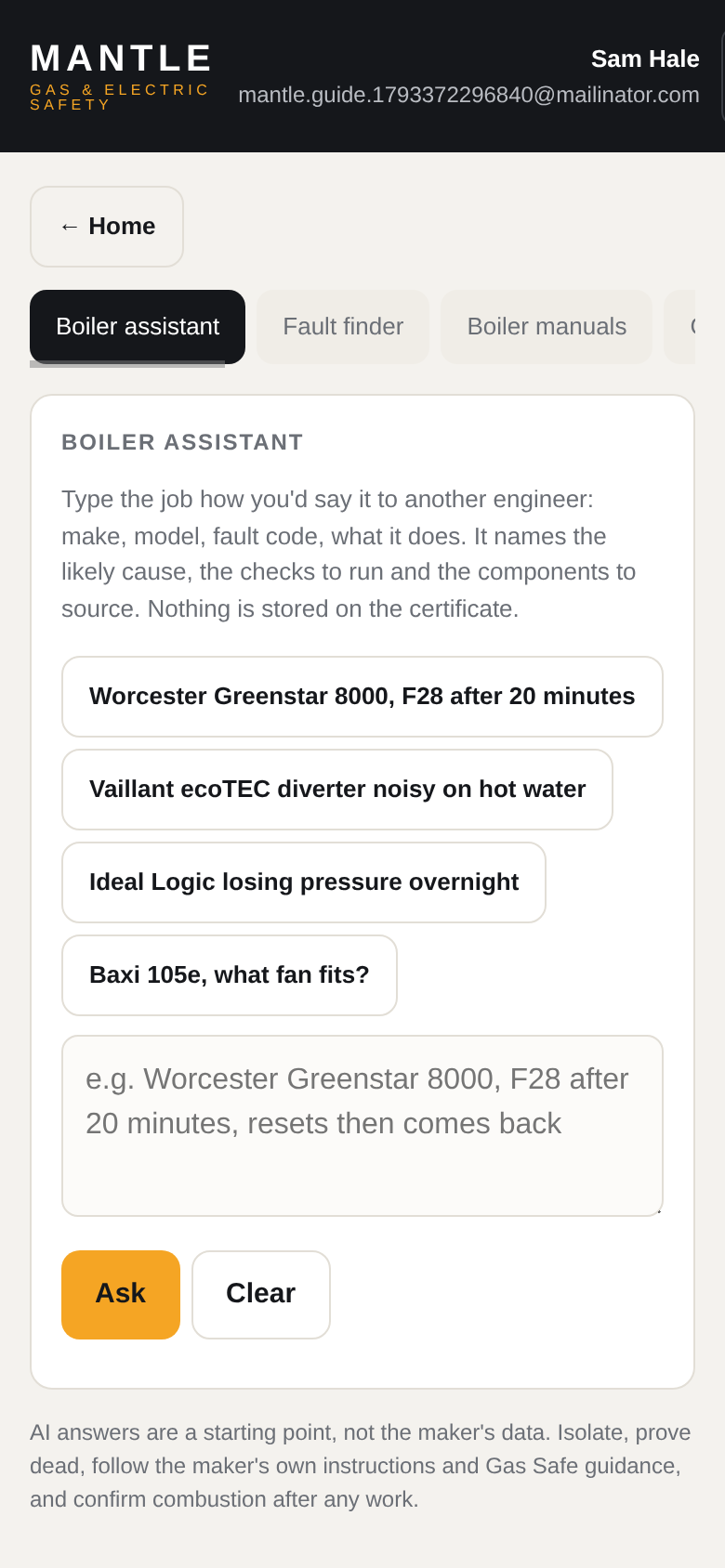
- Gas rate, pipe sizing, heat loss, ventilation, expansion vessel, gas ratio; voltage drop, Zs, IP ratings and the rest.
- Fault charts: 31 symptoms walked one box at a time, so each answer leads to the next box and you land on the likely cause. Type the boiler make and model at the top and the end of the chart links that maker's manual and code list. Fault codes by make, and a parts section telling you what it does, how it fails, how to test it.
- Boiler models: pick the boiler and every tool for it is one tap away: its manual, its fault codes, its age from the serial, the assistant. Mantle keeps the name, not the figures, so where a service figure is needed the manual is the source.
- Manuals opens the maker's own official page. No copied PDFs.
Step 11 · Where you stand
11
Reports
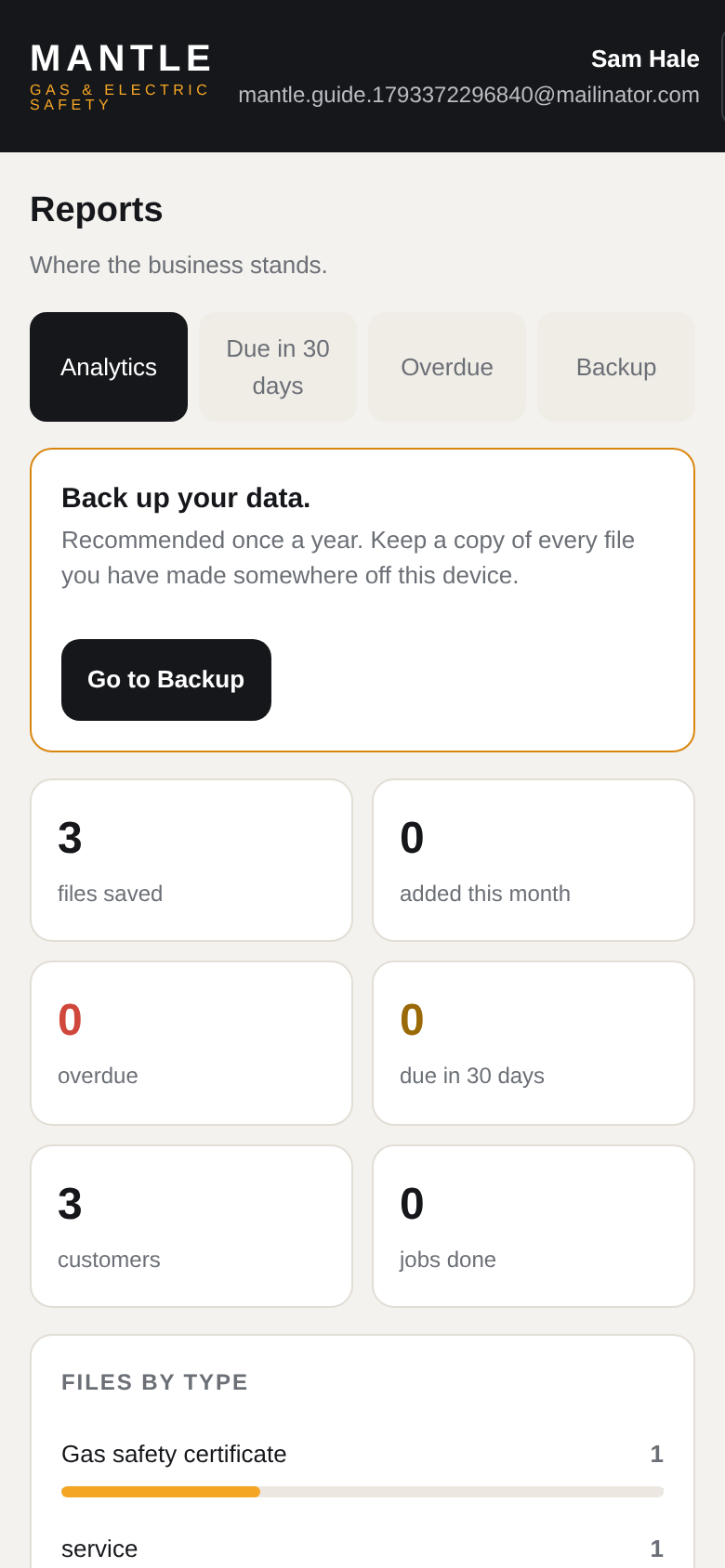
- Files saved, overdue, due in 30 days, customers, jobs.
- Overdue list is what you chase this week.
- Back up your data and Export CSV when you want a copy outside Mantle.
Step 12 · Getting paid
12
Quotes and invoices
- Quote to price the job. Line items, price, then Convert to invoice when they say yes.
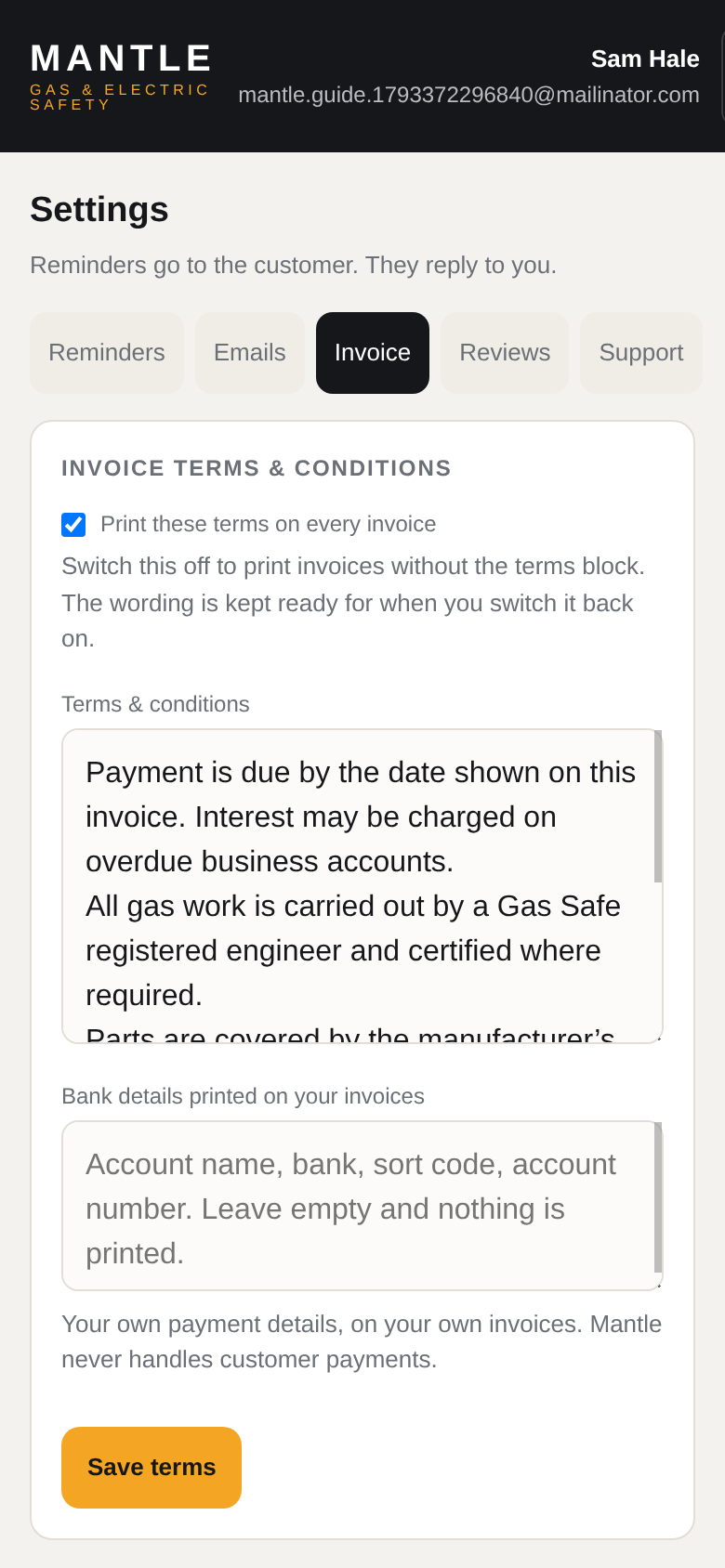
- Your bank details print on the invoice: Settings → Invoice → Bank details printed on your invoices. Put account name, sort code and account number.
- PDF or Email as before. The customer pays you directly, the money never passes through Mantle.
Invoices you raise are your own VAT business. Mantle does not handle customer money.
Step 13 · The plan
13
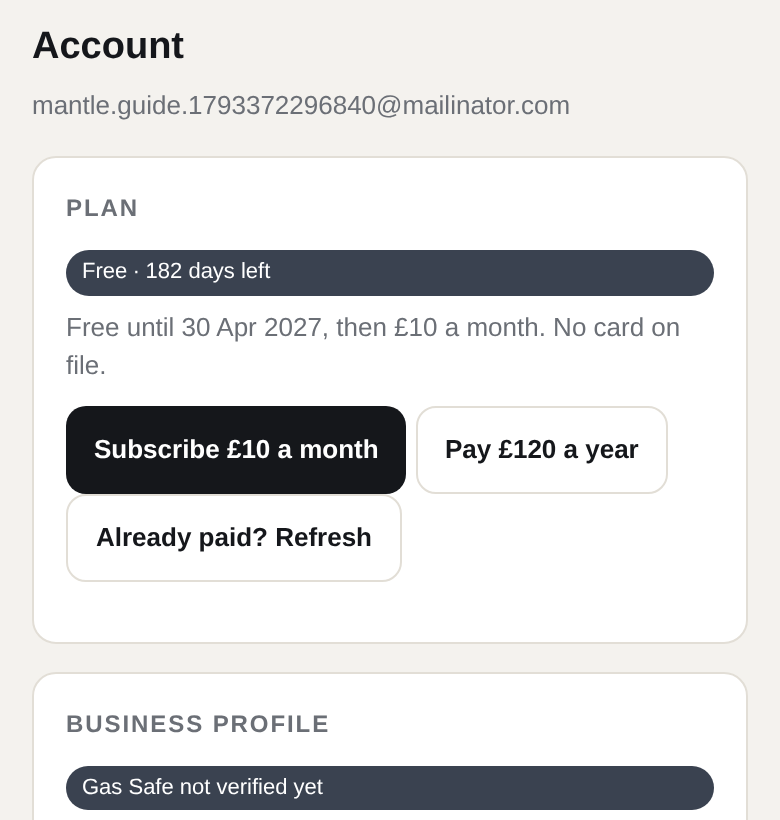
Free, then £10 a month
- Six months free from signup, no card needed.
- After that: £10 a month or £120 a year, card, from Account → Plan. Cancel any time and it runs to the end of the period.
- If the plan lapses, you can still sign in and download a backup of everything. You just cannot make new records until you resubscribe.
Nothing matches that. Try a shorter word: pdf, reminder, invoice, offline.
The phone app
- Mantle is a real app that installs from Google Play on Android and the App Store on iPhone, the same way as any other app. It has its own icon, the M, and opens straight to sign in.
- Sign in once with signal. After that it stays signed in.
- Settings → Security → App unlock and switch on Unlock with biometrics. Fingerprint or face opens it, no password in the van.
- No signal on a job? Fill the record anyway. It stays on the phone and syncs when you get signal back. Sync now on the offline bar pushes it.
- PDFs go out through the phone's own share sheet, so you can send the certificate from the drive.
Same account, same records. Nothing extra to set up.